

Self-service password reset (SSPR) removes the single most common helpdesk ticket there is — the forgotten password. But where you configure it changed in 2025, and most Microsoft 365 tenants are still carrying a policy gap they can’t see.
- Self-service password reset (SSPR) lets users reset their own password without calling the helpdesk — the fastest win in Microsoft 365 for cutting password resets off the support queue.
- Where you configure it moved. Since 30 September 2025 authentication methods can no longer be managed in the legacy MFA and SSPR policies.
- The gap most tenants have: Microsoft Entra ID respects every policy. If a method is enabled in any of them, users can still use it — disabling it in one place does not.
- If you sync from an on-premises Active Directory you also need password writeback via Microsoft Entra Connect, or password resets will not reach your local domain.
- SSPR is a genuine attack surface: weak verification methods, particularly SMS, are how attackers take over accounts.
What self-service password reset actually does
Self-service password reset lets an end user reset their own password, or unlock their account to regain access, after verifying identity through registered authentication methods — no helpdesk involvement. Users can reset their password from the sign-in page and the Windows lock screen.
It covers cloud accounts in Microsoft Entra ID (formerly Azure Active Directory, or Azure AD) and, once writeback is configured, on-premises Active Directory accounts too. Password resets are one of the highest-volume, lowest-value tickets any IT team handles, and enabling SSPR clears most password resets off the queue.
What you need before you enable it
Three things decide whether SSPR works on day one. First, licensing — who can access it. Per Microsoft’s licensing documentation, basic SSPR — password change, reset and unlock — is included at no extra cost in Microsoft 365 Business Standard and above and in all Microsoft Entra ID P1 and P2 plans. Password writeback is the exception: it needs Microsoft Entra ID P1 or P2, or Microsoft 365 Business Premium; standalone Business Basic and Standard do not support it.
Second, registration: users must register their authentication methods first — an unregistered user still ends up calling you. Third, administrators are governed separately. Administrator accounts are always enabled for a stricter, built-in policy that the standard user settings do not control, so global administrators do not behave like your everyday users.
How to enable SSPR in Microsoft 365, step by step
Enable self-service password reset from the Microsoft Entra admin centre; it is configured in the Password reset blade. Work through it in order:
- Set the scope. Go to Entra ID → Password reset → Properties and choose which users SSPR is enabled for: None, a Selected group, or All users. Start with a pilot group — never all users on day one.
- Choose the authentication methods. On the Authentication methods tab, pick which methods users can use and how many are required before they reset their password. Two is materially stronger than one.
- Configure registration. Require users to register their authentication information at sign-in, and set how often they re-confirm it — this stops the “I never registered” call later.
- Set notifications. Notify users when their own password is reset, and notify all administrators when another administrator resets a password — a simple, effective early warning of account misuse.
- Add customisation. Point the “contact your administrator” link at your real helpdesk email so users regain access instead of a dead end.
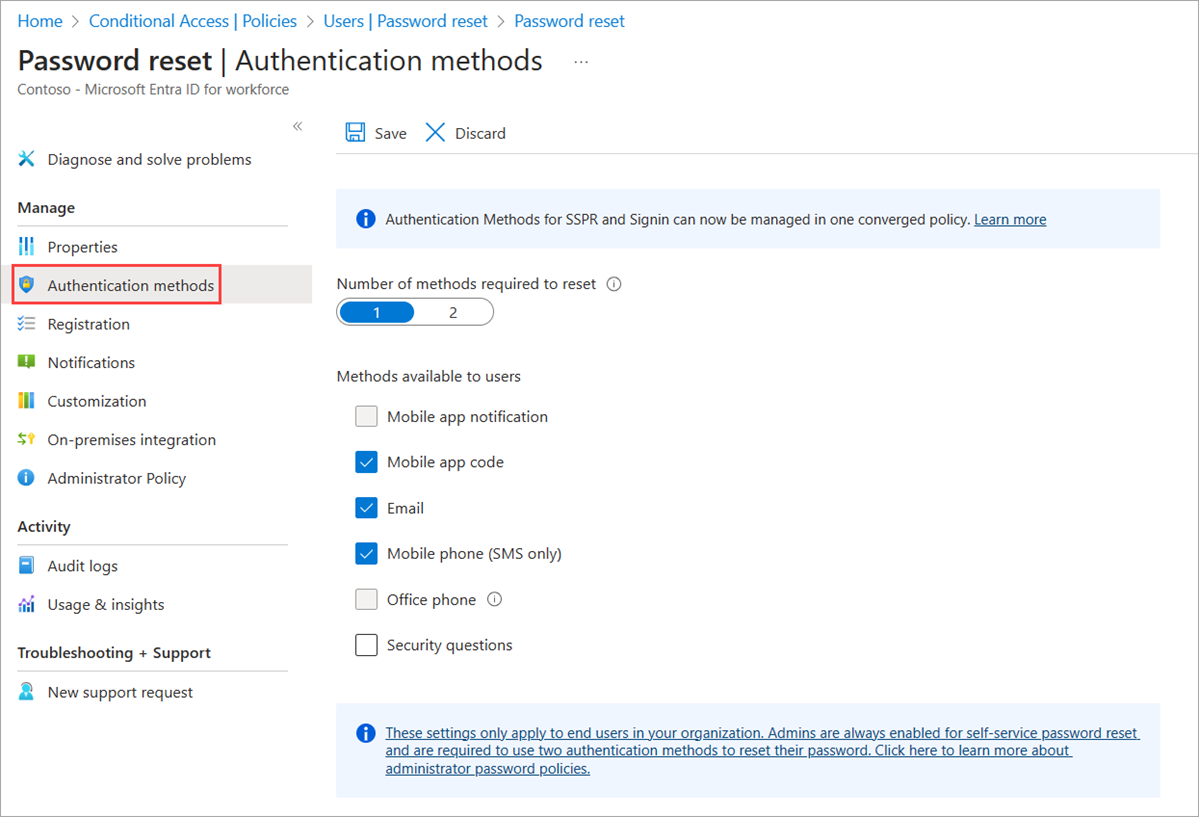
Which methods users see is increasingly governed by the newer Authentication methods policy, not this legacy blade. Still standing up the tenant? Our Microsoft 365 setup guidance covers the groundwork.
Which authentication methods to allow (and which to avoid)
SSPR is only as strong as the weakest verification method you permit: the method that lets users back in is the one an attacker targets — a security decision, not a convenience.
| Method | Verdict | Why |
|---|---|---|
| Microsoft Authenticator | Strong | Phishing-resistant push and code from the Authenticator app; the method to standardise on. |
| Passkeys (FIDO2) | Strong | Hardware-backed and phishing-resistant. |
| Email OTP | Conditional | Only as safe as the mailbox behind it; weak as a sole method. |
| Voice call | Conditional | Tied to the same phone number as SMS; avoid as a primary method. |
| SMS text message | Avoid | SIM-swap attacks port the phone number to hijack password resets. |
| Security questions | Avoid | Often researchable; and they can still only be managed in the legacy SSPR policy. |
The practical rule: require two methods rather than one, standardise on Microsoft Authenticator or passkeys, and think hardest about SMS and voice calls, since both hinge on a phone number an attacker can hijack. Password resets by SMS are a live, exploited attack path, not a theoretical one.
The policy gap that may still be open in your tenant
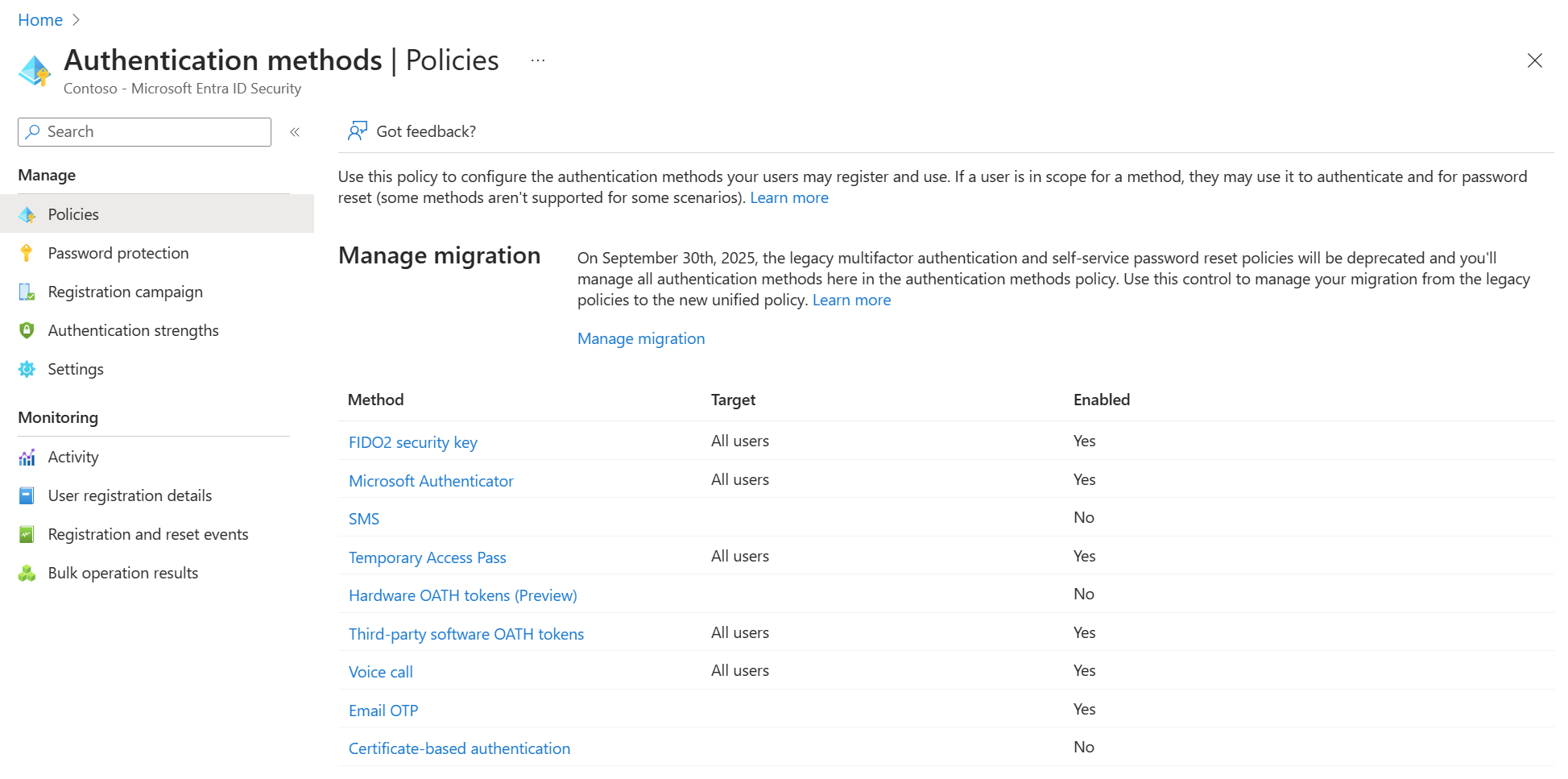
Almost nobody explains this. Microsoft Entra ID respects all three policies at once — legacy MFA, legacy SSPR, and the new Authentication methods policy. A method you enable for users in any one policy stays usable even if the other two disable it. To prevent a method, administrators must disable it in every policy.
Microsoft’s own example: users enabled for Mobile phone under the legacy SSPR policy can still reset their password by voice call even when the other policies forbid it. You believe you switched it off; the tenant did not.
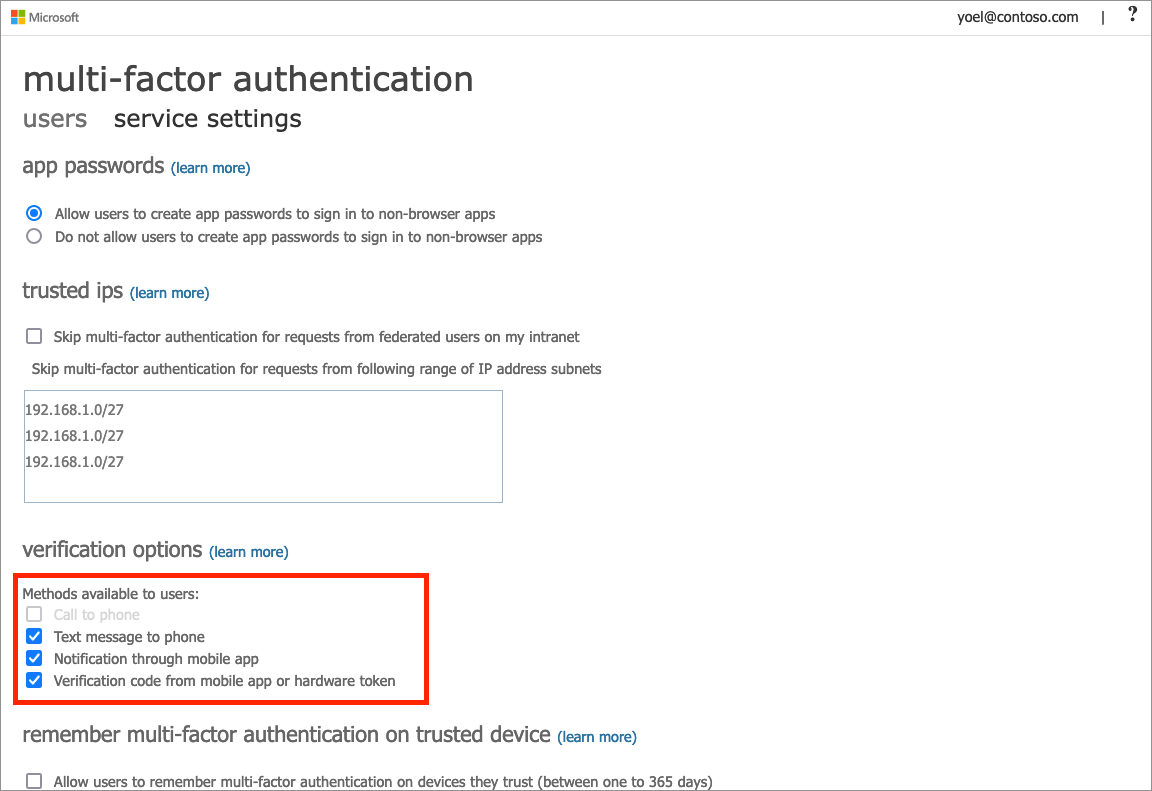
The sting: since 30 September 2025 you can no longer manage authentication methods in the legacy policies. Even once you find the gap, you cannot close it by editing them — the only fix is to finish migrating to the Authentication methods policy.
Migrating to the Authentication methods policy
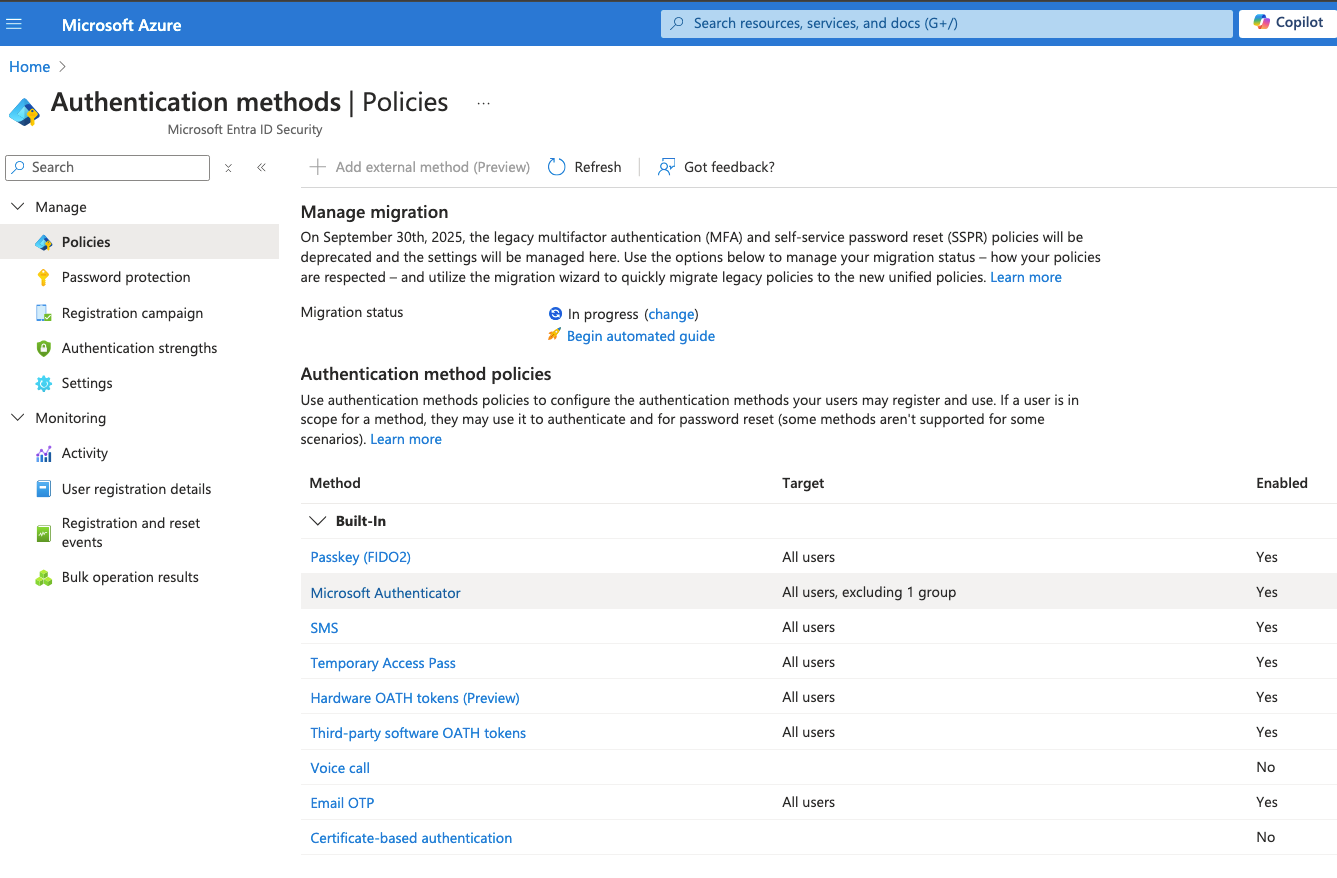
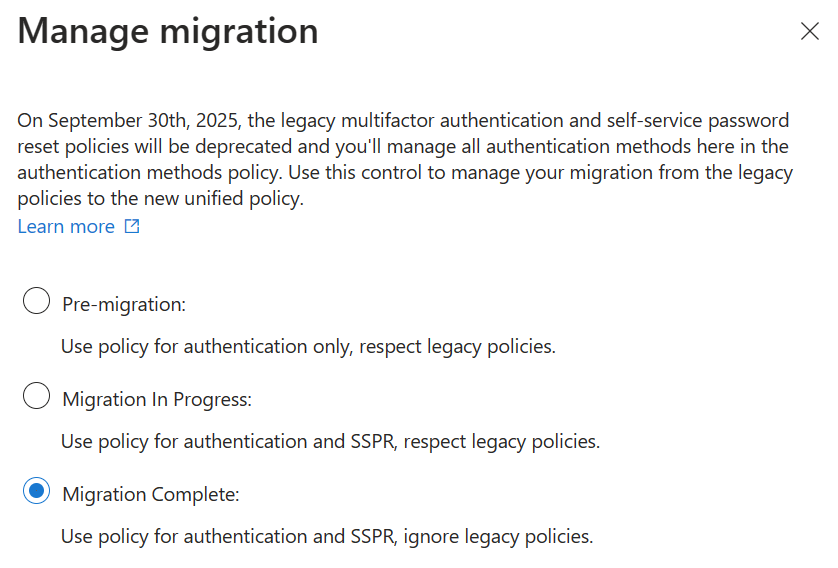
First, audit which methods are enabled in each policy — your rollback reference. Then run the automated migration guide at Entra ID → Authentication methods → Policies: it reads how your legacy MFA and SSPR policies are configured and proposes a match, which administrators edit before committing. Users keep completing password resets as before.
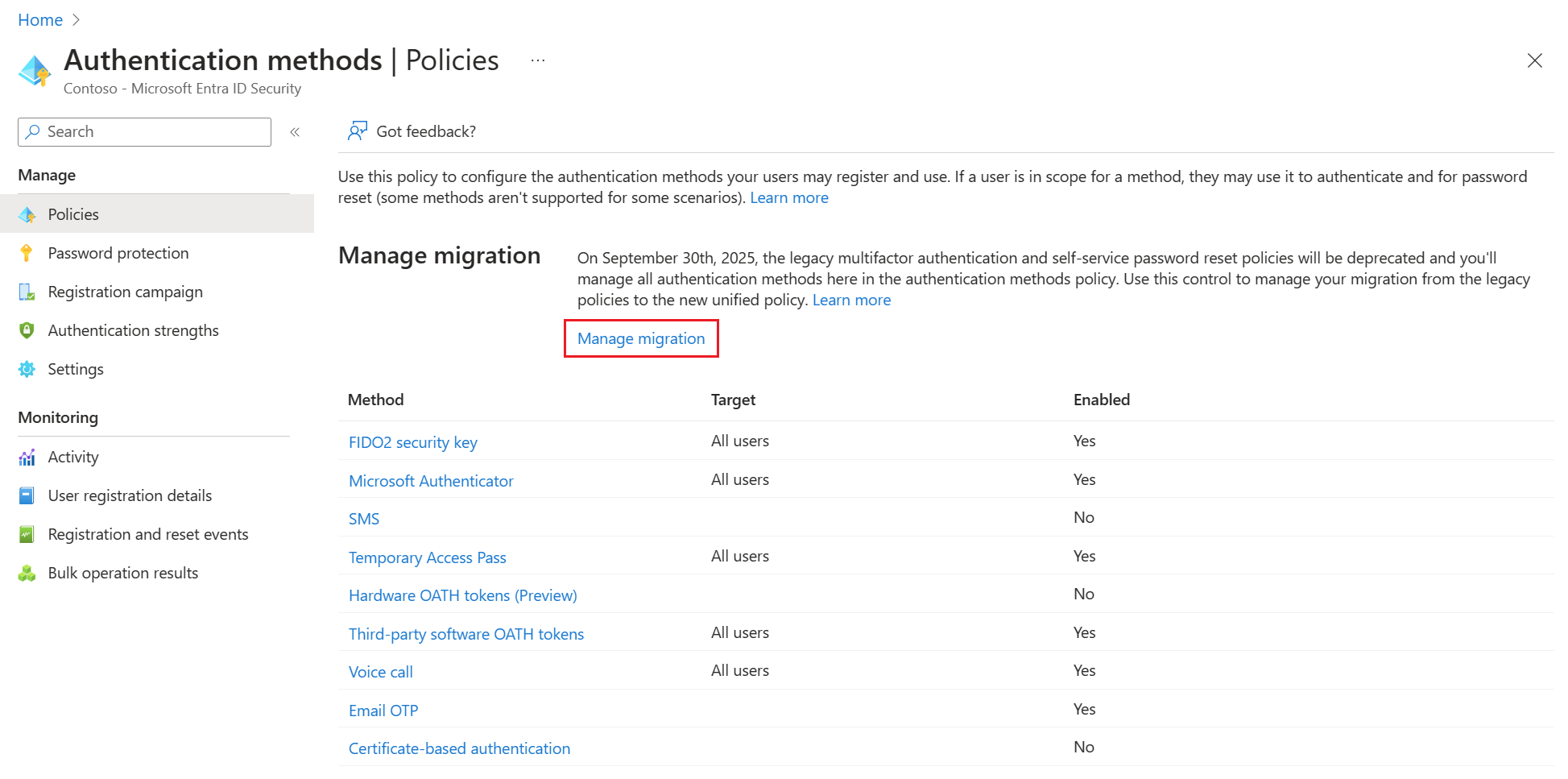
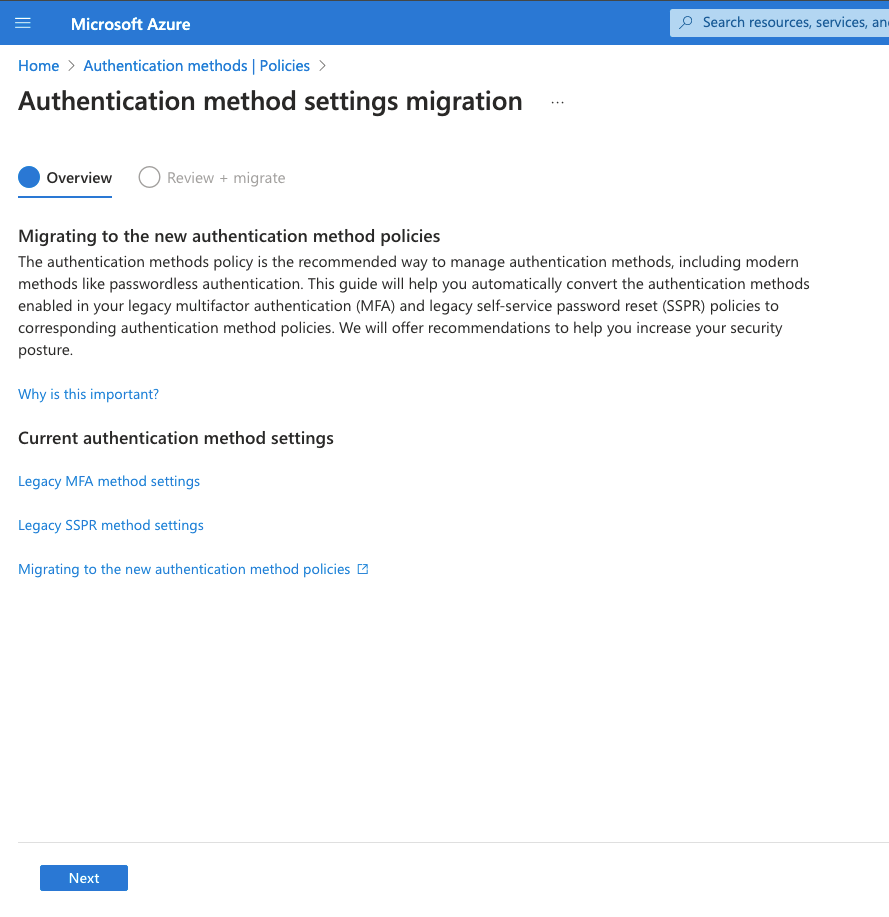
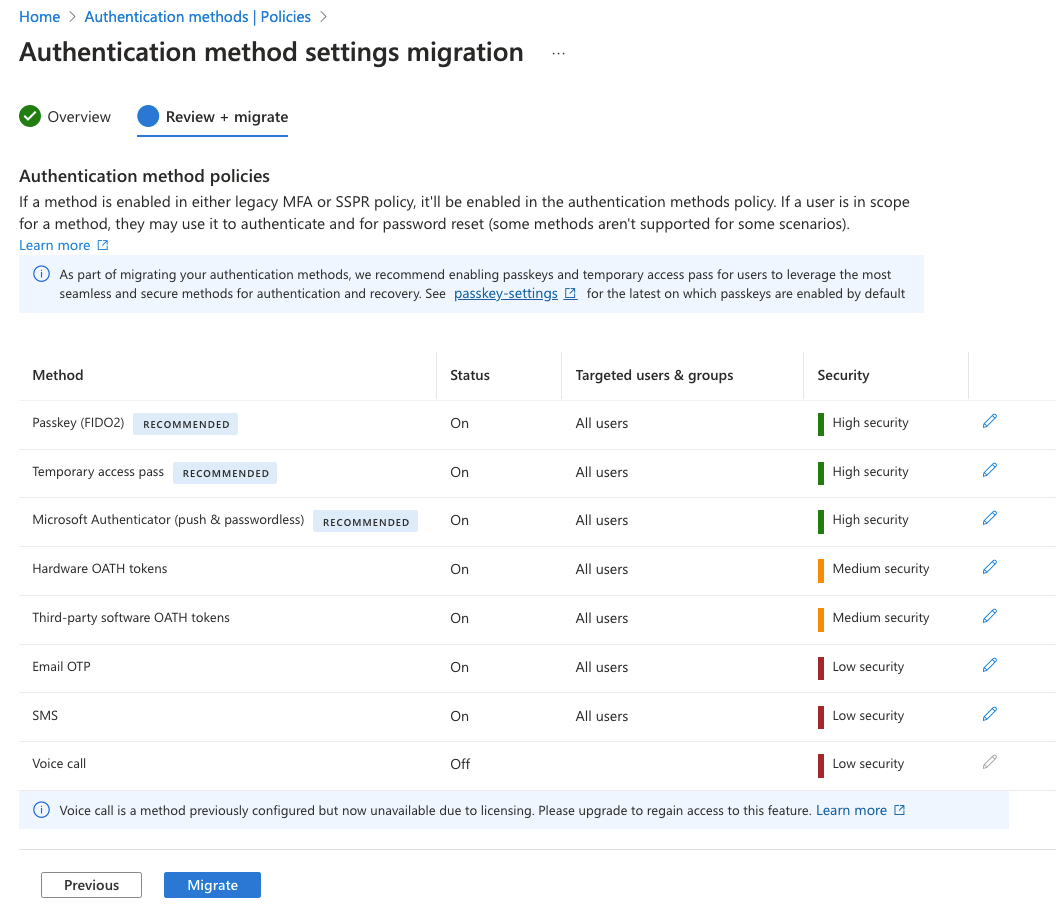
Microsoft recommends carrying across whatever users rely on today, then adding modern methods like passkeys and the Authenticator app. The process is fully reversible: administrators can move the status back to In Progress to re-enable the legacy policies. Only tenant-level settings in Azure AD migrate — individual user settings do not.
| State | What applies |
|---|---|
| Pre-migration | Authentication methods policy used for authentication only. Legacy policy settings respected. |
| Migration in Progress | Authentication methods policy used for authentication and SSPR. Legacy policy settings still respected. |
| Migration Complete | Only the Authentication methods policy is used. Legacy settings ignored. |
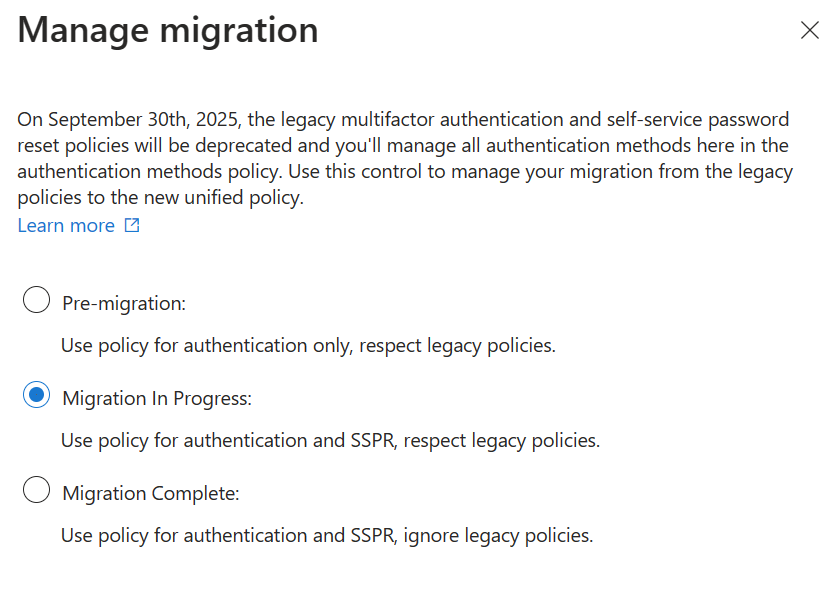
One constraint: from Pre-migration you can move to any state, but once you start Migration in Progress you can only move between In Progress and Complete — never back to Pre-migration. Legacy methods map like this:
| Legacy SSPR method | Authentication methods policy |
|---|---|
| Mobile app notification | Microsoft Authenticator |
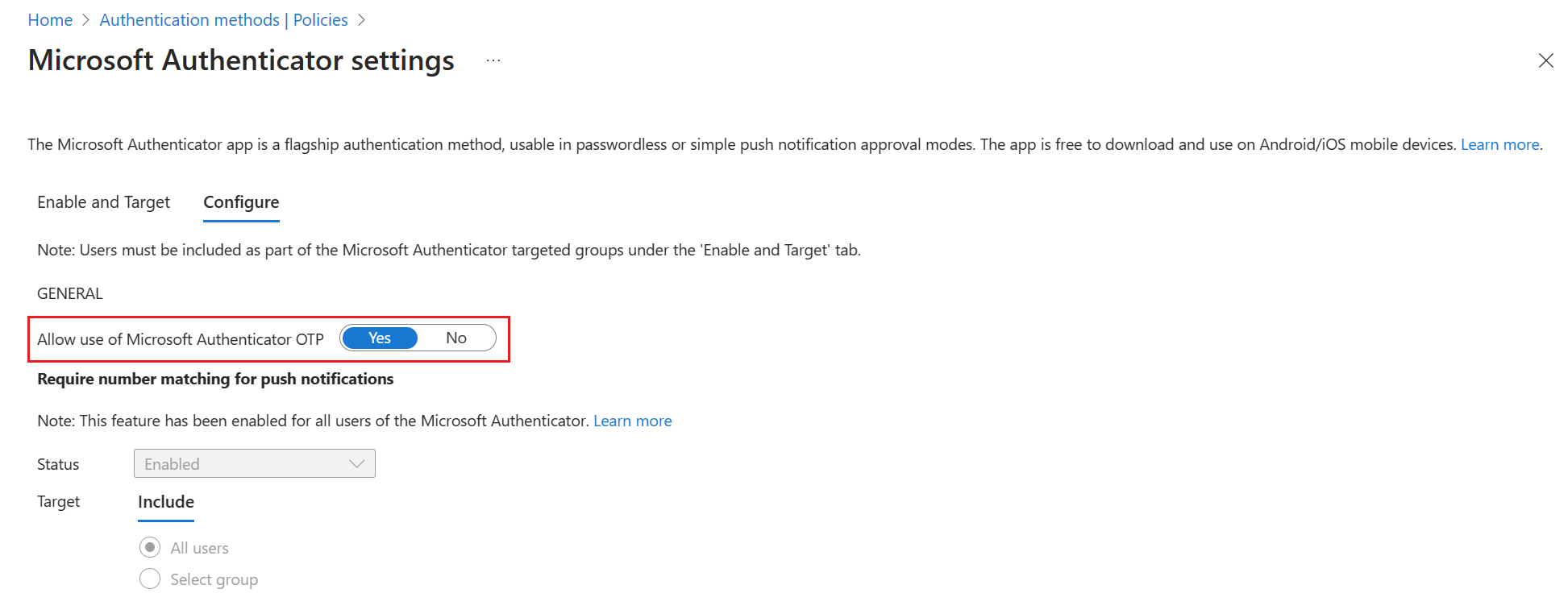
| Mobile app code | Microsoft Authenticator / Software OATH tokens |
| Email OTP | |
| Mobile phone | Voice calls + SMS |
| Office phone | Voice calls (Configure tab) |
| Security questions | Not yet available — stays in the legacy SSPR policy |
If you have an on-premises Active Directory
If your users sync from an on-premises Active Directory, enabling SSPR in the cloud is only half the job. Without password writeback through Microsoft Entra Connect, a reset updates the cloud account only — users change their password, then still cannot access the local domain, file shares or line-of-business apps. It fails silently, the worst way to fail.
Enable password writeback in Microsoft Entra Connect, under the On-premises integration tab of the Password reset blade — on the P1/P2 or Business Premium licence noted earlier.
How PIP handles this
PIP configures Microsoft Entra ID for every managed Microsoft 365 client and reviews the authentication method policy as part of the managed service — not left at defaults. That review is where the three-policy gap gets found and closed, before an attacker finds it.
“The one we see most often: a business is certain it turned SMS off for password reset, and it is still on — because it was only switched off in one of the three policies, and Entra respects all three.”— PIP, from Microsoft 365 tenant reviews
Common questions
Is SSPR being deprecated?
What are the risks of SSPR?
How to check if self-service password reset is enabled?
Is SSPR free?
Not sure which authentication methods your tenant actually allows?
PIP reviews Entra ID authentication policy as part of managing Microsoft 365 — including the legacy settings most tenants never finished migrating.
Review my Entra ID setup →